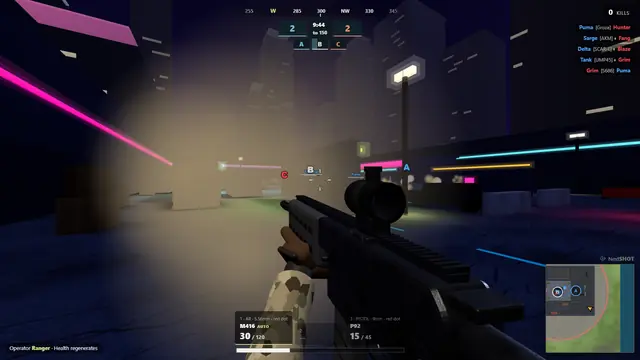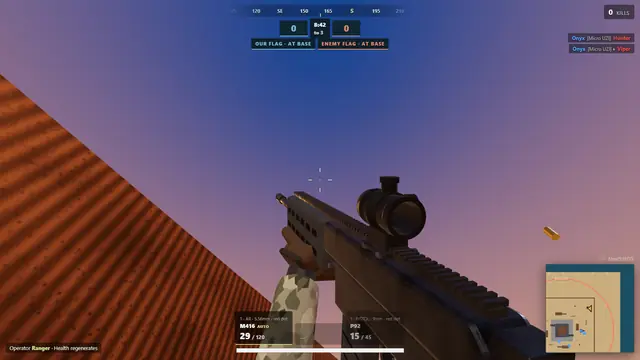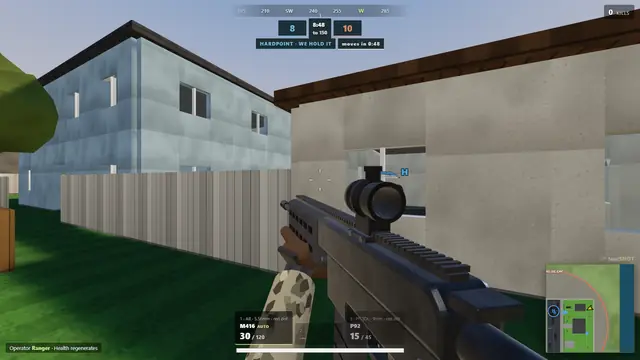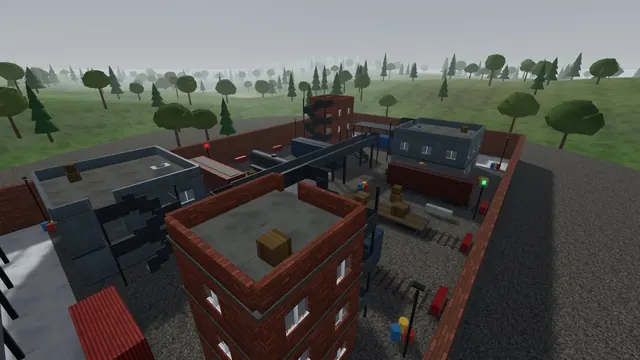
Check the essentials
Lobbystrike runs in a browser with WebGL 2 and plays best with a keyboard and mouse. A Chromebook can be suitable if its browser and graphics hardware support those requirements. Compatibility is not a promise of a particular frame rate: different devices, drivers and power settings can behave very differently. Phones and tablets get on-screen touch controls, with graphics starting on the Performance preset.
Start with a smaller match
Close unnecessary tabs and applications, then begin with fewer bots and players. Try the game settings at a lower visual quality before increasing detail. A smaller rendering workload gives integrated graphics more room to handle a fight. Large matches and busy maps can be more demanding.
Separate lag from low frame rate
If looking around is choppy, reduce graphics load and close background applications. If other players jump around while your camera stays smooth, your network connection or the server may be the limiting factor. Try a stable connection and avoid large downloads during a match.
Use an allowed, supported browser
Keep your browser updated and check that hardware acceleration is available. Managed school or workplace devices may restrict WebGL, games or network connections. Respect those restrictions; this site does not provide a filter bypass. If WebGL 2 is unavailable, the game cannot render its 3D scene.
Before you join
Lobbystrike plays best on a desktop or laptop with a keyboard, a mouse and a current WebGL 2 browser. Phones and tablets get on-screen touch controls. The hosted game needs an internet connection. Performance depends on your device, settings and connection. Play opens the game lobby; choose your mode there.